
Eikaiwa Admin Dev Diary #4 - Class Duplication and Calendar Overhaul
As promised in the last dev diary, I spent the week implementing class, event and program duplication to make planning future lessons easier, and I also overhauled the calendar feature.
Duplication
Previously, I'd added date ranges to classes so that you could create a class that wouldn't start until next April, for example. You could also set a class to end at a given date. Even still, planning future lessons would be much easier if you could just copy an existing class and change a few things instead of filling out a whole new form. So, I went ahead and implemented duplication for Classes, Events and Programs, which turned out to be fairly straightforward. Now you can just click "Make a copy" and you're almost done.
Calendar overhaul
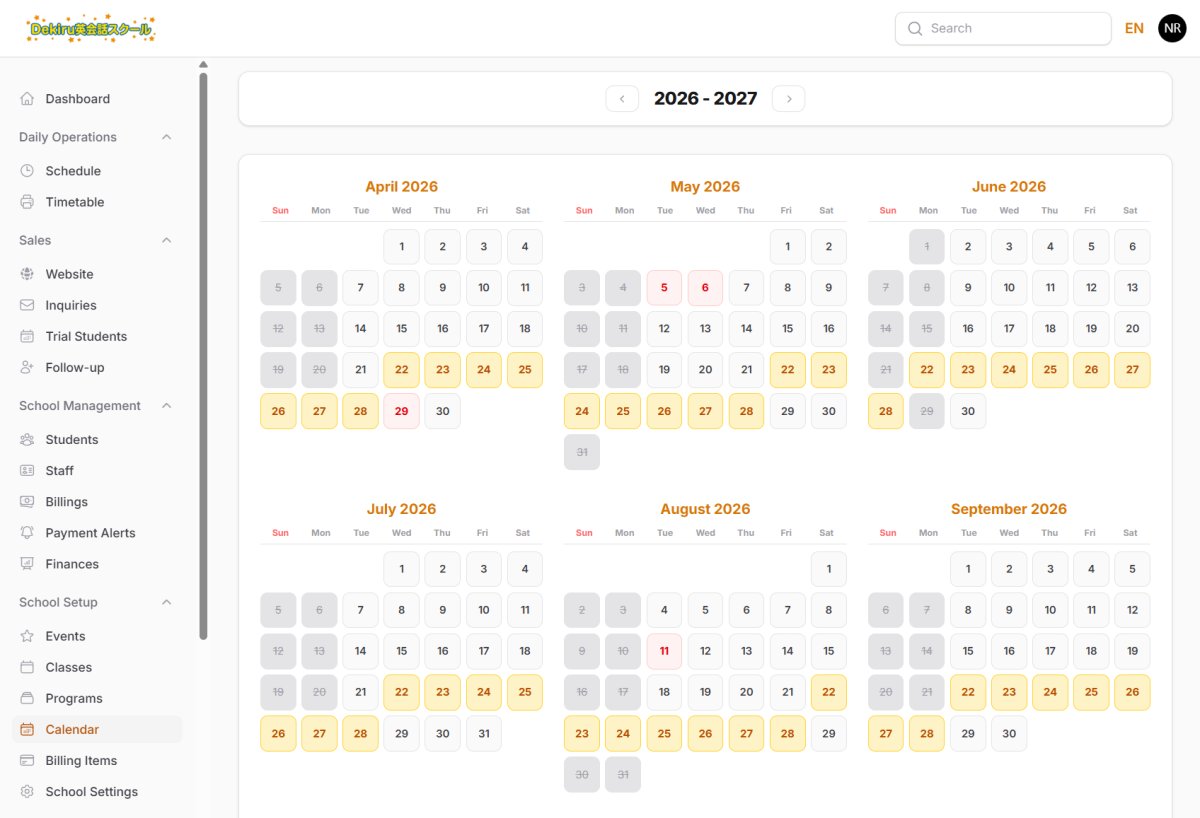 The new calendar has both a view and edit mode
The original calendar was a little bit destructive. When you clicked a date, it would open the school and generate lessons for the day, and clicking again would close the school and delete any lessons from the schedule. With all the recent changes added to preserve lesson and billing history, I couldn't possibly allow a simple toggle to wipe out an entire day's worth of lessons.
First of all, I introduced a View mode. Clicking a date opens a panel that shows what lessons are scheduled for that day. If no lessons are scheduled, it prompts you to generate some. When I say "generate lessons", I mean go to the main Schedule and click the "Generate" button. This runs a program that looks at all your classes, checks the times, staff and rosters, and creates lessons within a date range, e.g. April 1 to April 30. You can generate a whole year's worth of lessons in one go if you prefer.
Then I rebuilt the previous functionality as an Edit mode. As before, you can toggle a date to open or close the school, but this time there are strict checks to make it impossible to delete any lessons. Instead, if you close the school when lessons are scheduled, they are simply cancelled. Ideally, the school manager will prepare the calendar in advance anyway, so closing an active day should only happen in the case of a typhoon or similar emergency.
The main purpose of the calendar's edit mode is to add all the days that your school is closed. This could get tedious, so in the School Setting section, I added an option to select your regular days off, e.g. Saturday and Sunday. Now, with a click of a button at the top of the calendar, you can instantly set those days to closed.
To wrap up the calendar work, I rebuilt the PDF generation. It now looks a bit more professional and includes your school logo and contact details. You can print a 12-month calendar, or a 6-month version if you only plan half a year ahead like me!
Preparing the demo
I had planned to write up info boxes for every page, and check that I had Japanese translations for everything. Unfortunately, I didn't find the time for this, but it's something I can chip away at over time.
I did strip out a lot of old code that is no longer needed. Specifically, I removed over 80 occurrences of an "is viewer" check that was meant for browsing the demo without being able to interact with it. It turned out to be a pointless feature because when you lock down all the buttons, you can't get any sense of what this software is capable of.
I also removed all the "Fill Test Data" buttons and code that was previously used to quickly fill in a form. It might have been good for showing off features quickly, but it just became code bloat and would be removed eventually anyway.
Next steps
It's high time I added an Expenses section. This will help a school manager track costs, if only roughly, to give an idea of their school's financial health. Currently, the system deducts staff salaries and transportation costs, but what about rent, utilities, subscription services, textbooks? All that needs to be accounted for.
Believe it or not, I'm actually very happy with my recent progress on Eikaiwa Admin. It's going to be amazing when it's all finished! :)