
Airtable - The Inventory Manager
For the final project in this series, I tackled Formula Fields. Up until now, everything I've entered into Airtable has been static — I type it in, and it stays there. I wanted to see how the database could do the maths for me.
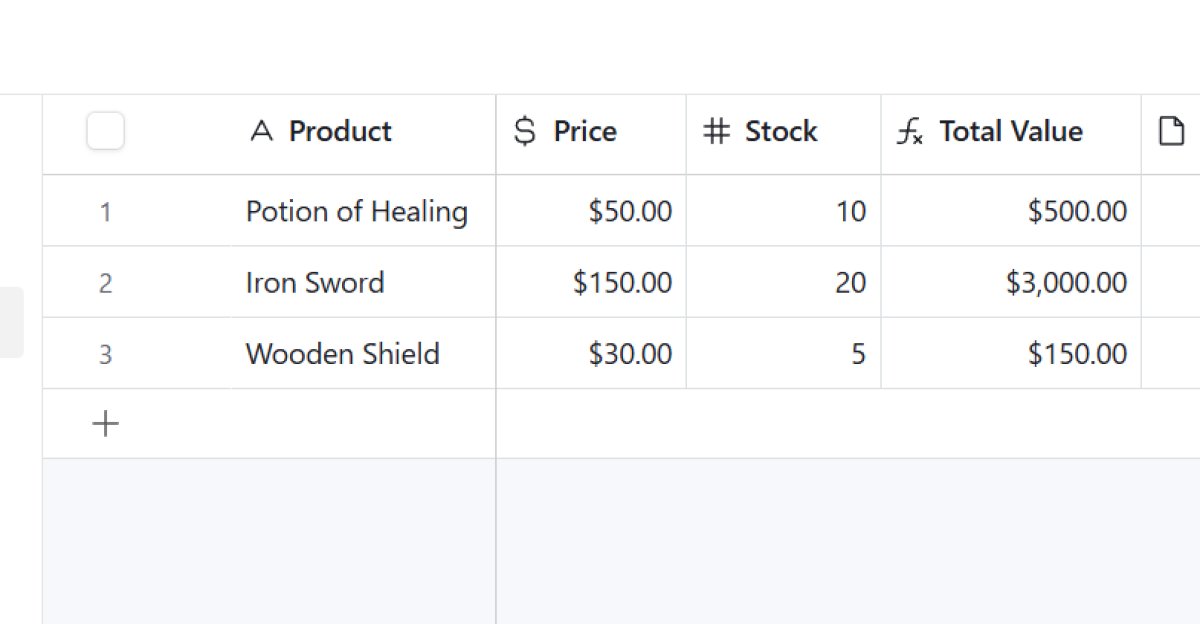 Airtable Inventory Manager
The Setup
I created an "Inventory Manager" and listed a few RPG items: Potion, Sword, and Shield.
To test out a formula, I needed two data points:
- Price (Currency field)
- Stock (Number field)
The Formula
In a standard spreadsheet, you would usually write a formula based on grid coordinates, like =A2B2*. In Airtable, you just write formulas using the names of the fields themselves.
So I created a new field called "Total Value," selected the Formula type, and entered: *Price Stock (no quotation marks, no squiggly brackets, just the plain text).
The Result
As soon as I hit save, the "Total Value" column populated automatically.
- Potion ($50 x 10) = $500
- Sword ($150 x 2) = $300
The real test, however, was changing the data. I updated the stock of the Potion from 10 to 20 and low-and-behold, the "Total Value" updated to $1000. Magic :)
Verdict
As with Excel, Airtable handles the logic for you, so you don't need to manually recalculate totals every time you buy or sell stock.
Series Conclusion
That wraps up the 10-project challenge that Gemini created for me. Each one was too short and simple for my liking, but I suppose I did get an introduction to many of the basic features such as views, filters, and grouped data. Now onto bigger and more exciting things!